vibemon-app
VibeMon Desktop


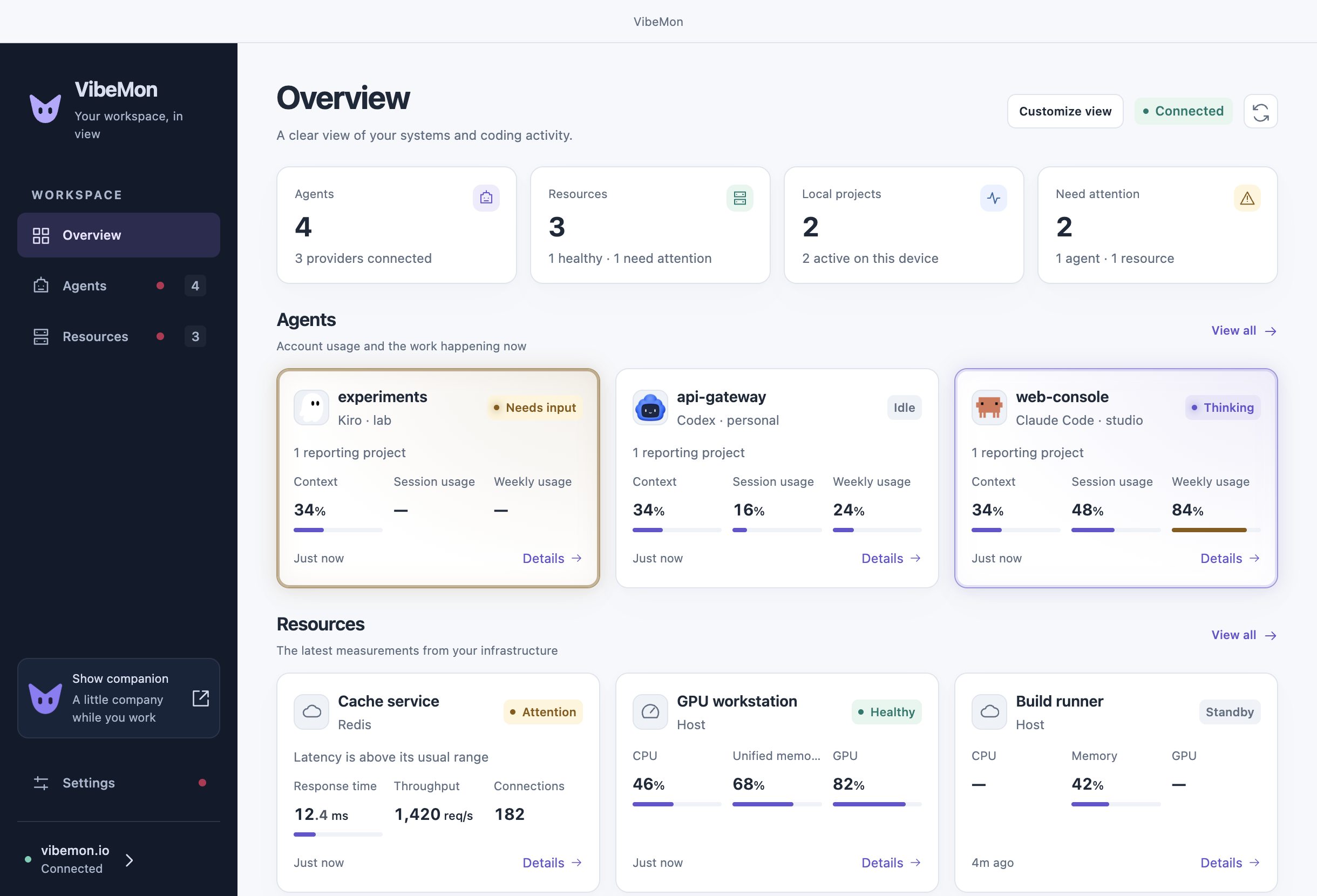
Monitor selected resources and coding accounts from your desktop. VibeMon combines cloud summaries with local coding-agent activity, a floating character, and a speech bubble.
- Monitor custom resources, servers, DGX Spark hosts, and Kubernetes clusters.
- Automatically distinguish supported coding logins and monitor several profiles on one machine. Setup and limits.
- Choose visible metrics and view recent-hour trends. Web edits to resource labels, ranges, and order appear on the next poll.
- Receive local tool events without a cloud connection. Hooks support Claude Code, Codex, Kiro, OpenClaw, and OpenCode.
- Add macOS widgets: each one shows the state and metrics of one resource or one coding agent.
Install and start
On macOS:
brew install opspresso/tap/vibemon
For Windows or a direct macOS installer, download the matching package from Releases. npm distribution is discontinued; existing npm packages do not receive updates.
Windows packages use the OpsPresso self-signed certificate. Windows may show an unknown-publisher warning, and automatic updates require a trusted publisher.
Open the installed VibeMon application. It starts in the system tray and listens locally on http://127.0.0.1:19280.
Connect cloud sources
- Click the menu-bar or tray icon and select Dashboard.
- Open Settings → Connections and select Sign in with VibeMon.
- In the browser, sign in with Google, Apple, or an email account, then select Allow. The App receives its own read token.
- In Overview, open Customize view, select resources, provider accounts, and metrics, then select Save view.
The same verified email shares one VibeMon account across Web, Desktop, iPhone, and Android, regardless of the sign-in method. Each device receives its own scoped token. Apple Hide My Email supplies a different address; link it from Web Account if you want it to open an existing account.
For email sign-in, create an account on Web and confirm your email address first.
A source appears after its collector or hook sends the first report. Follow Get started to connect a coding tool or server. Use the same verified email for the sending computer and Desktop. Compare one card and its report time with the Web dashboard; Desktop refreshes every 30 seconds. Provider credentials remain on the source machine.
To see a Claude or Codex plan allowance without a hook, open Settings → Connected services and connect the account. VibeMon’s server keeps that sign-in encrypted and reads only usage. See Connected services.
If you already have a read token from Account, open Use a read token instead, enter the VibeMon address and token, then select Save and connect. The App keeps it in OS secure storage. Disconnect this device clears the local connection and attempts to delete that token from VibeMon. If VibeMon is unreachable, delete it on Web Account. Other clients using that token also lose access. See the desktop workspace guide for selection, missing data, sources on standby, and troubleshooting.
Connect local coding tools
Open Settings → Integrations → Install integration for the tool you use, then restart that tool. Local character updates do not require a VibeMon sign-in. To send the same activity to VibeMon, select Sign in to send activity in Send activity to VibeMon and approve it in the browser. To use an existing write token, open Use a write token instead and select Save and verify. The App’s read token is never reused for hooks.
Start a coding task. Check its activity under On this device in the App to confirm local hook delivery, then check the project’s report time on the Web dashboard to confirm VibeMon delivery. A character can also follow a selected cloud project, so its movement alone does not identify the delivery path. The App does not install coding tools themselves or start collection on remote servers.
Tool detection honors CLAUDE_CONFIG_DIR, CODEX_HOME, KIRO_HOME, and OPENCODE_CONFIG_DIR. These variables must reach both the tool and App processes. OpenClaw installation is supported on macOS/Linux. See Monitor coding agents for terminal and Windows setup, and the hook reference for event mappings.
macOS widgets
On macOS 14 or later, select Edit Widgets on the desktop and search for VibeMon Mac. Add a Resource · Mac or Coding Account · Mac widget for each item you want to watch, then edit the widget to choose the item. See macOS widgets.
Character display
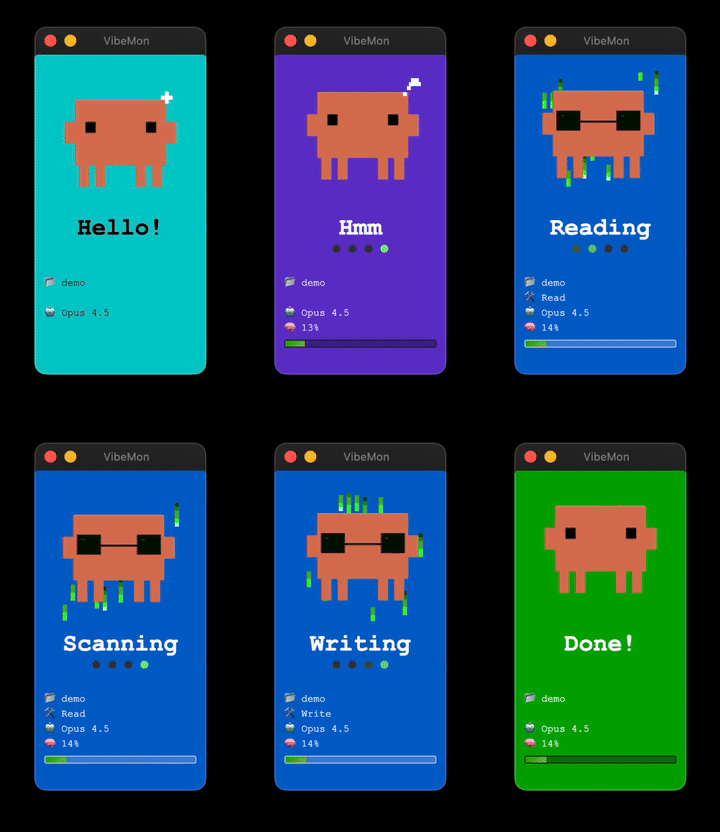
One character window follows the active local or selected cloud project. Drag the character or bubble to move them together; use Settings → Companion → Character to choose a fixed character. See desktop features for states, characters, settings, and interaction details.
Develop
Use Node.js 26.11.1 (nvm use) and the pnpm version pinned in package.json:
pnpm install --frozen-lockfile
pnpm start
Web development normally runs on http://localhost:3030; the unpackaged App accepts that loopback origin. Packaged apps require HTTPS. Build and validation commands are in build and packaging.
Documentation and related projects
- Documentation index — Desktop user and developer guides.
- Local HTTP API — Loopback status, window, and health endpoints.
- Send your own data — Web API to send and read summaries with a token.
- VibeMon service — Login, source configuration, and browser dashboard.
- Hooks and collector source — Public installers, collector, shared schema, registries, and rendering assets live in this repository.
- Web source — Private service implementation; App installation, builds, and CI do not require access.
- VibeMon Touch — Four-inch ESP32-S3 display using the same HTTPS summaries, status rules, and palette. Legacy C6 devices use the previous firmware.
License
MIT