vibemon-app
macOS widgets
VibeMon adds two small widgets to macOS 14 or later. Each widget shows one item:
| Widget | Shows | Source |
|---|---|---|
| Agent | State, context, session usage, and weekly usage of one provider account | Selected agent accounts and local hook activity |
| Resource | State, collector message, and up to three metrics of one resource | Resources selected in Customize view |
Add as many widgets as you need, for example one per server and one per agent account.
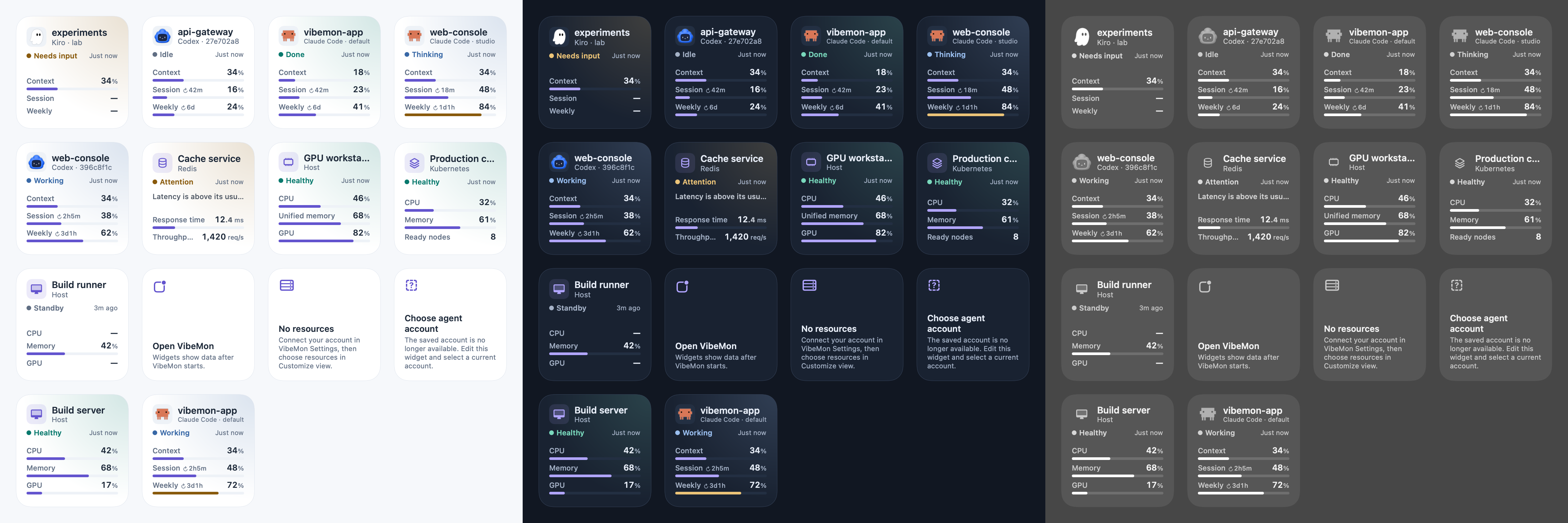
Add a widget
- Start VibeMon. The widgets read data that the App writes.
- Control-click the desktop and select Edit Widgets, or open Notification Center and select Edit Widgets.
- Search for VibeMon Mac. Drag Resource · Mac or Agent · Mac to the desktop or Notification Center.
- Control-click the new widget and select Edit “Resource · Mac” or Edit “Agent · Mac”. Choose the item to show. Agent accounts are listed as provider plus short account ID, for example
Codex · 27e702a8, with the account name and project names below. The list includes a resource icon or agent character. Search by name, account ID, or project to narrow the choices. Each choice keeps its original full ID.
If VibeMon is missing from the gallery, keep the App in /Applications, start it once, and reopen Edit Widgets. The widget extension is included with the macOS App; there is no separate widget installer.
If both apps are available, VibeMon Mac contains the widgets supplied by this Mac; VibeMon contains widgets supplied by your iPhone. Individual widget names also end in Mac or iPhone. Update the corresponding app to update its widgets.
A new widget leaves its selection empty and shows the first item of its kind in Dashboard order: items that need attention first, then by name. Items on Standby come last, with the most recently active first. A agent account’s name in this order is the project responsible for its displayed state. Choosing an item keeps that selection. Click a widget to open its page in the Dashboard.
What the widget shows
- Header: a agent shows the project first, then the provider and short account ID, for example
dockpadaboveCodex · 27e702a8, as on the Dashboard and iPhone. The title follows the project responsible for the current state, including when an older input request ages out. A resource shows its name and type. Below the header, the widget shows the state in its color with the report age, for example3m. A resource goes on Standby 120 seconds after its last receipt, and a agent ages to Idle and then Standby when its hooks stop reporting. - Standby: the item is not connected or not active. It uses the neutral color and the same layout as other states, and the values are the last ones received. After VibeMon quits, every widget shows Standby because nothing updates its data. A widget without a choice keeps the item it showed before. Standby does not need attention.
- Detail line: the collector’s message for a resource. A agent has no detail line.
- Metrics: the first three metrics selected in Customize view for a resource. An agent shows Context, Session, and Weekly. An account that only a connected service reports shows Session and Weekly only: the service reads no context. A plan usage bar uses the warning color from 70% and the danger color from 90%. Beside Session and Weekly,
↻ 2h5mis the time until that limit resets:now, minutes (42m), hours and minutes (2h5m), or days and hours (3d1h). It counts down without new data and is absent when the hook reports no reset time.—means no measurement was reported. - Desktop not focused: macOS draws the widget in one color. The character is then drawn without its tile, so its outline stays visible, and gauges are white on a faint track.
A agent combines all projects of one provider account. The state of the project that needs attention is shown first, for example a project waiting for input. Local hook reports replace the activity and context of the same cloud project. Session and weekly usage come from the account’s cloud data, as on the Dashboard and iPhone, including — when the server has no current measurement. Local reports and this Mac’s cache never replace that account’s cloud usage.
For an account available only on this Mac, each usage window shows the most recently measured value across its hook reports and local cache. Measurements expire after 30 minutes or when their reset time passes. An older report without a measurement time uses its event time, or its first receipt time when both are absent. A heartbeat without a measurement time contributes no usage; repeating activity does not make an older measurement current.
Notices
| Notice | Meaning and action |
|---|---|
| Open VibeMon | The App has not written widget data on this Mac. Start VibeMon. |
| No resources | No resource is selected. Connect your account in Settings → Connections, then choose resources in Customize view. |
| No agents | No account has reported. Install an integration in Settings → Integrations, or select accounts in Customize view. |
| Resource unavailable / Choose agent account | The saved item is no longer available. Edit the widget to choose a current resource or account. |
| Restart VibeMon | The running App and the widget use different data versions, for example after an update. Quit and reopen VibeMon. |
| Data unavailable | The widget data cannot be read. Quit and reopen VibeMon. |
If an older coding widget stops showing measurements after automatic account detection is enabled, edit its account choice. A saved codex:default or claude:default is a different ID from the new automatically detected account. Choose the provider with its current short account ID. VibeMon preserves explicit selections and never silently points an old widget at another account. A — within an available account means that particular measurement was not reported.
Numbers keep the shared measurement precision. The decimal separator and fractional digits use a smaller, slightly lighter style; Increase Contrast retains their full color. The feed includes semantic number segments, so the widget does not reinterpret a formatted number in another locale. Older version 2 feeds retain their original value text.
Refresh and privacy
Starting the packaged Mac App refreshes its own system registration before requesting new timelines. It stops the widget extension bundled at that App’s path only when that process runs another file than the executable installed now, which is a worker that survived an App upgrade with a cached older bundle version. An upgrade writes a new executable file with a new inode, while the old worker keeps its old inode open; lsof reports that inode exactly. This setup runs after the local HTTP server starts and does not delay it. Saved widget choices and other apps’ widget processes remain intact. If widgets stay blank after an update, quit and reopen VibeMon Mac.
- VibeMon writes
~/.vibemon/widgets/feed.jsonabout one second after a change. Only your user account can read the file. - Each item includes its future states and reset times, so a widget changes to Idle or Standby and counts down to a reset on time without new data.
- macOS limits how often widgets refresh. VibeMon asks for a refresh at once when an item appears or disappears, its name or icon changes, or its state color changes, for example when a project starts to wait for input. When VibeMon quits, it writes the Standby data and asks for a refresh at once. Other changes, such as new metric values, refresh at most every 5 minutes.
- The widget extension runs in the App Sandbox. It can read only
~/.vibemon/widgets/. It has no network access and never receives tokens.
Develop
| Path | Contents |
|---|---|
src/widgets/feed.mjs |
The feed model. It applies the shared state, label, tone, and number rules. |
src/widgets/publisher.cjs |
Collects App data, writes the feed, and requests widget reloads. |
src/widgets/runtime.cjs |
Refreshes the installed App registration and stops only its exact widget executable before the first reload. |
native/macos/ |
Xcode project: the widget extension (Widgets/, Shared/), the reload module (WidgetCenter/), and the preview tool (Preview/). |
scripts/build-macos-widgets.mjs |
Builds the Xcode products into build/macos-widgets/Release/. |
scripts/macos-widgets-packaging.cjs |
electron-builder hooks: builds the products before packaging and signs the extension. |
Requirements: Xcode 16 or later, selected with xcode-select or DEVELOPER_DIR.
pnpm preview:widgets   # Build, then render with the extension's bundled images (light, dark, approximate vibrant)
node scripts/verify-macos-widgets.mjs /Applications/VibeMon.app # Verify an installed or packaged App
pnpm test:design       # Feed model tests and the palette drift check
pnpm exec jest tests/widget-publisher.test.js tests/widget-runtime.test.js tests/deep-link.test.js
node tests/native/widget-runtime-smoke.cjs # Real process lifecycle, using disposable test workers
The package verifier checks the extension metadata, App/widget versions, URL scheme, reload module, three localizations, every registered character image, and the App icon. Its native tests check picker labels, search, images, saved choices, missing items, feed decoding, and timeline dates. It renders a second sheet using the packaged extension’s images. These checks do not replace adding and editing a widget in the system gallery.
To check the installed App in the macOS gallery manually:
- Search for VibeMon Mac and check its App icon, Resource · Mac, and Agent · Mac previews.
- Add each widget, edit it, and search for a specific resource or account. Check the icon, account ID, and project names.
- Close the editor. Confirm the selected item remains after reopening it, and that clicking the widget opens the Dashboard.
- Check focused and unfocused desktop appearance, then change the selected item’s name or icon and confirm it refreshes. macOS controls the final refresh timing.
- After an upgrade, confirm the installed widget process was replaced,
chronodstores fresh timelines withoutBundle version did not match, and the four displayed widgets show their selected data. The extension’s “Request ended … success” only confirms generation; it does not prove that macOS accepted or displayed the archive.
Rules for changes:
- Keep state, label, and format rules in the App. The Swift code only lays out the feed.
- The feed carries labels in the App language. The widget’s own text (notices, ages, countdowns, configuration) is in
native/macos/Widgets/Localizable.xcstrings;node scripts/generate-monitoring.mjsfails when a widget string with the English of asrc/shared/i18n/shared.jsonmessage has other translations. - The App reads the OS language once at startup; the widget follows the OS language at once. After a language change, the widget shows its own text in the new language and the feed labels in the old one until the App restarts.
- A breaking feed change increases
WIDGET_FEED_VERSIONinfeed.mjsandWidgetFeed.supportedVersioninnative/macos/Shared/Feed.swift. native/macos/Shared/Palette.swiftis generated fromsrc/shared/design/tokens.css. After a token change, runnode scripts/generate-widget-palette.mjs --write.- WidgetKit accepts reload requests only from the main executable of the App that contains the widgets. For this reason the reload request comes from a Node-API module (
widget-center.node) loaded by the Electron main process, not from a helper executable. An unpackagedpnpm startsession writes the feed but does not request reloads. - electron-builder does not sign
Contents/PlugIns. Thesignhook signs the extension withnative/macos/Config/Widgets.entitlements, then signs the App.