vibemon-app
Desktop workspace
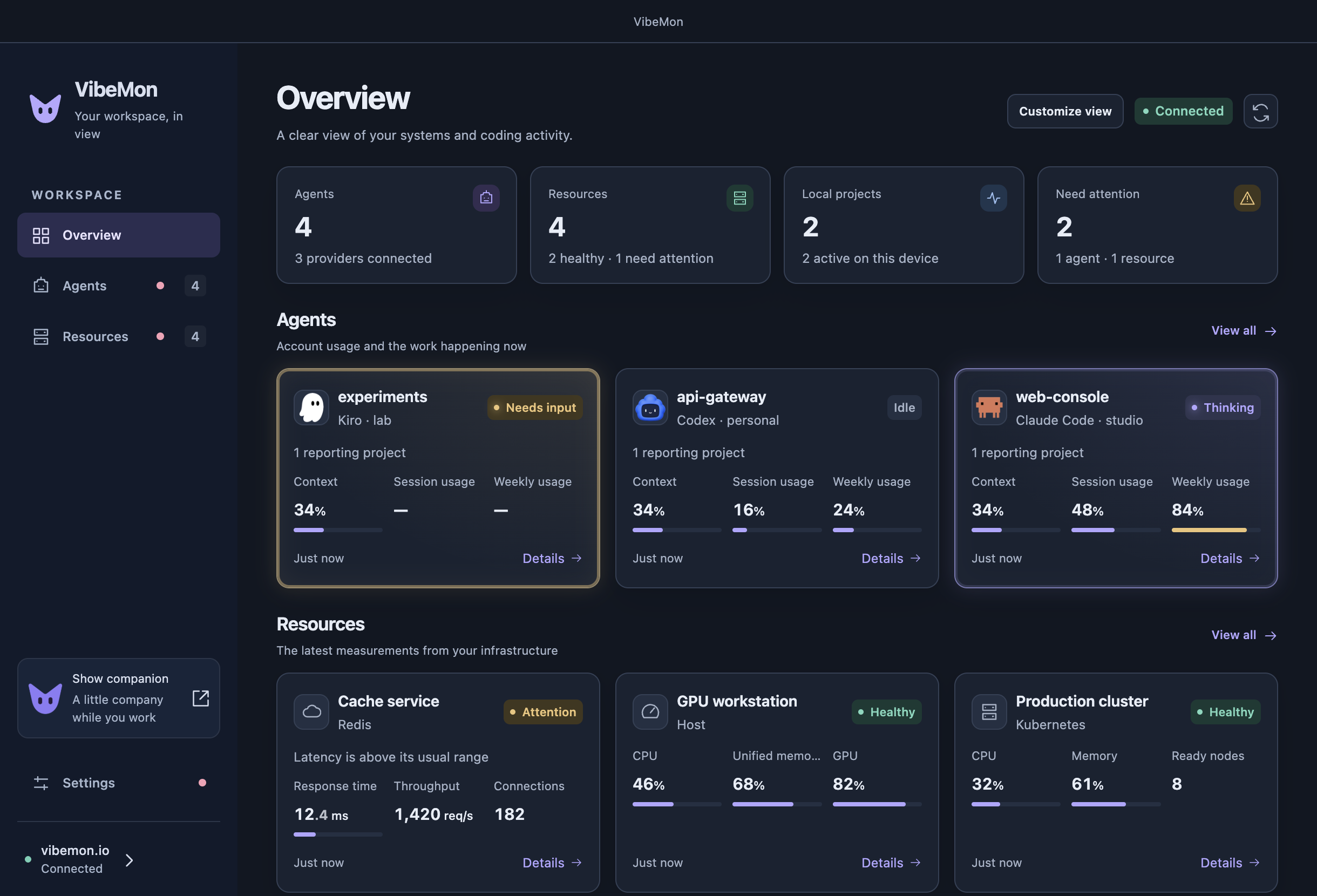
Click the VibeMon menu-bar or tray icon to open its menu, then select Dashboard to open Overview. Agents and resources appear together, agents first; local projects and available plan usage appear below them. Use the sidebar for Agents, Resources, or Settings. Select Need attention in Overview to show selected cloud sources with warnings, errors, or active projects waiting for input. Sources on Standby do not need attention. Select it again to restore the overview. Closing the workspace keeps the companion and local hooks running. Show companion restores the character to the desktop.
The tray menu provides Dashboard, Settings, Show companion or Hide companion, Integrations, About, and Quit. The application menu uses the same workspace pages. On Windows, press Alt to reveal the menu bar. Preferences live in the workspace. Keyboard shortcuts are Cmd/Ctrl+1 for Overview, Cmd/Ctrl+2 for Agents, Cmd/Ctrl+3 for Resources, and Cmd/Ctrl+, for Companion settings. Cmd/Ctrl+W closes the workspace window without quitting the App.
Connect your cloud workspace
- Open Settings → Connections in Desktop and select Sign in with VibeMon. Your browser opens the VibeMon address.
- Sign in with Google, Apple, or an email account and select Allow. For email sign-in, create an account on Web and confirm the address first. The browser returns to the App on
http://127.0.0.1:19280/auth/callback, and the App receives a read token named VibeMon Desktop (host name) · read. The App asks for theread usagescope, so the same token can also connect and disconnect connected services. - Open Customize view. Select resources, provider accounts, and visible metrics, then select Save view. Discover sources refreshes the available list without discarding unsaved choices. When every listed item in a group is selected, the view follows that whole group, including accounts, resources, and metrics that appear later. A partial selection shows only the chosen items; open Customize view to add new ones. Selections saved by Desktop 3.7.2 or earlier reset to all accounts, resources, and metrics once, because those versions saved a full selection as a fixed list.
VibeMon resolves Google, Apple, and email sign-ins with the same verified email to one account. Desktop uses the owner returned by VibeMon; it never derives an owner from a provider name or email. Its read token and the hooks’ write tokens remain separate credentials for that same account. Different addresses, including Apple private relay addresses, need explicit linking from Web Account. See one account on every platform. A Google or Apple login does not set an email password; adding password sign-in requires email account creation and confirmation. The available methods are managed on Web Account.
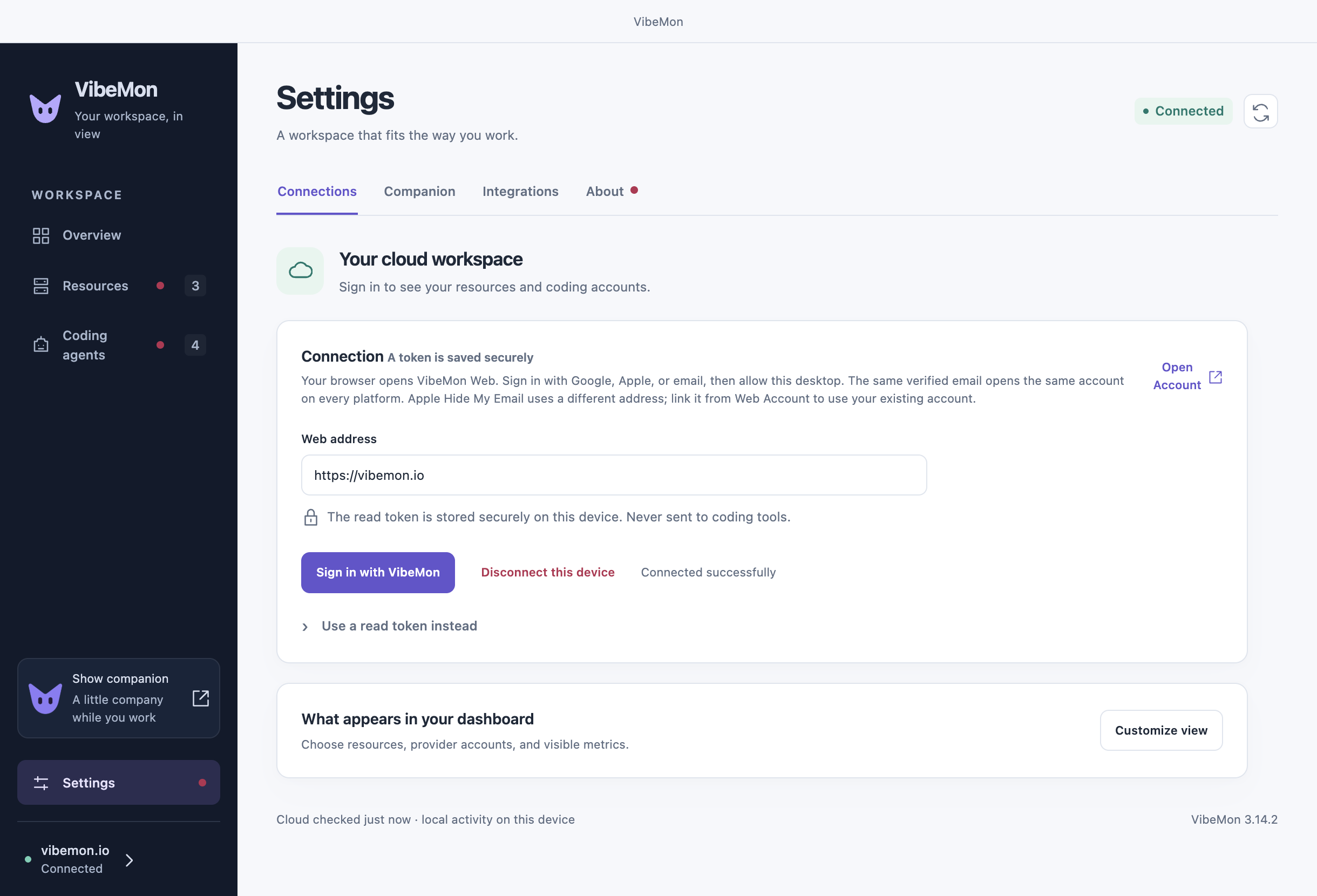
Sign-in uses OAuth authorization code with PKCE and a loopback redirect: the code works once, and only this App holds the verifier that exchanges it. The App keeps a token only when VibeMon granted every requested permission: both read and usage for the dashboard, and write for cloud delivery. Otherwise it deletes the token and asks you to sign in again. Unlike VibeMon for iPhone, which also accepts a read-only token, Desktop rejects a dashboard sign-in without usage. The dashboard sign-in therefore needs a VibeMon Web that allows the usage scope for the vibemon-desktop client, as vibemon.io does. With a Web that does not allow it, the dashboard sign-in fails; use Use a read token instead there. To use a token that you created on Web Account instead, open Use a read token instead, paste it, and select Save and connect. Sign-in needs the local HTTP server. If another program uses port 19280, sign-in stops at once with an explanation; use a token instead.
Cancel, a new sign-in, a manual connection change, or disconnect prevents an unfinished sign-in from saving its connection. This includes token exchange and the access check after it. An exchange already in progress finishes within its request timeout so the App can delete any token it received; it never adopts that token after cancellation. Read access and cloud delivery use the same cancellation rule.
A replacement read token is verified before it replaces the saved connection. Failed checks preserve the current workspace and credential. After a replacement, the App deletes the replaced token from VibeMon (DELETE /api/v1/connection) because no other part of this device uses it. When a sign-in gets a token but the App cannot save it, the App deletes that new token from VibeMon before it shows the error. These deletions are best effort: a token that VibeMon cannot delete stays in Web Account. The read token is encrypted with Electron safeStorage, backed by the operating system keychain or secret service. The saved value never returns to the renderer. Linux basic_text storage is rejected. Unlock or configure secure storage if the App cannot save a token. Disconnect this device removes the local credential and displayed cloud data, then deletes that token on Web (DELETE /api/v1/connection). When VibeMon cannot be reached, the App says so; delete the token in Web Account. Dashboard read tokens are never copied to hook configuration.
Settings → Connections shows the signed-in account and its Google, Apple, or email sign-in methods. The sidebar also shows the account label. These details come from GET /api/v1/account with the saved read token. Refresh account reloads the metadata; a failed read is shown with a retry action. Changing or disconnecting the workspace clears the previous identity and discards its pending responses.
Latest state is polled every 30 seconds, restricted to the saved selection. When VibeMon rejects the token (HTTP 401 or 403), scheduled polls stop until you sign in, save a token, change the view, or select refresh. Selecting no sources pauses data requests and preserves the connection result. The local project and usage panels work without a cloud connection. HTTPS is required; an unpackaged development App also accepts loopback HTTP for isolated tests.
Scheduled and manual polls of GET /api/v1/sources are conditional. The App sends If-None-Match with the ETag of the last 200 response for the same Web origin, token, and query (ids and accounts). On 304 Not Modified, the App keeps those sources and takes the server time from the X-Server-Time header. A 304 without a valid X-Server-Time, or without a cached 200 response, is an invalid response and the poll fails. The App forgets the cached response when the origin, token, or query changes, when you disconnect or polling stops, and after a rejected or invalid response; the next request is then unconditional. An unreachable server, 429, or 5xx response keeps the cached response, so the first poll after an outage can return 304. After system sleep, the App adds the slept time to the age of the last snapshot and polls at once. Each completed poll still sends one update to the dashboard, as before.
Cloud report age is anchored to the response’s serverTime (or X-Server-Time on 304) and advances with a monotonic elapsed clock. The computer’s date or time-zone settings do not change freshness, attention, or the recent-hour window. Failed requests keep aging the last accepted snapshot; they do not reset its age.
Session and weekly usage show the time until that plan limit resets, for example Resets in 2h5m, in the companion bubble, the account cards on Agents, account details, the usage panel, and the macOS widgets. The smaller Overview cards show it when you point to a usage metric. The format is now, 42m, 2h5m, or 3d1h. Account details also show the weekly usage of one model family, such as Weekly Opus, after weekly usage when the hook reports it. Nothing is shown when the hook reports no reset time.
Cloud reset countdowns use the observation timestamp and the same cloud clock. Local hook countdowns use their local observation time. Each monitoring poll refreshes a visible bubble only when its displayed values change; this does not refresh agent activity, extend sleep timers, or reopen a closed companion. A legacy report without an observation timestamp keeps its supplied duration.
Resources and history
Resource cards support arbitrary types, metric labels, units, order, and display ranges. Host cards support CPU, memory, GPU, and temperature. Spark reports Unified memory. Kubernetes cards support CPU, memory, ready/total nodes, and unhealthy pods.
Overview uses compact readings. Full custom-resource cards and details retain up to six significant digits.
Use Add resource to define a database, queue, sensor, or another resource on Web. Send observations using its generated contract, then discover it in Desktop. Details → Edit resource on Web edits an existing resource, including Spark and Kubernetes presets. Saved labels, ranges, and metric order apply on the next poll. Custom metric choices are scoped to a resource, so equal keys on different resources stay independent.
Details shows current readings, collection status, and the recent hour. History loads on demand and refreshes every minute while visible. Closing the detail dialog or hiding the workspace stops its refresh timer. Signed values and measurements outside a display range remain visible in the chart. Historical values use the definitions returned with their history response.
Chart gaps mean no recorded measurement. Resource heartbeats include fresh measurements and add minute samples. Agent heartbeats refresh status without adding activity samples. A single observed minute appears as a point. VibeMon serves minute history for 24 hours and, with Pro, hour history for 7 or 30 days. Desktop requests only the recent hour, even when the shared account has Pro. A status-only resource has no numeric history.
History details show minute averages and maxima with gaps for unavailable observations. A failed history request keeps its error visible until a successful retry. Hidden metrics do not trigger history requests.
Send local activity to VibeMon
When you sign in to the workspace without a saved activity connection, the App automatically opens a second browser permission request to send activity. Approve it with the same VibeMon account. The App keeps separate read and write tokens and preserves any existing activity connection. If you cancel or the activity setup fails, workspace sign-in remains available and the App explains that activity setup did not finish.
To set up or replace the activity connection separately, open Settings → Integrations → Send activity to VibeMon and select Sign in to send activity. After you allow it in the browser, the App saves a write token named VibeMon Desktop (host name) · write for the local hooks. To paste a write token instead, open Use a write token instead and select Save and verify. Verification checks permissions without creating a source or test observation. Only a successful check replaces the saved connection; the next real hook event sends data.
Check saved connection checks the current token again. Rejected, read-only, unreachable, and unsupported servers have separate messages. The displayed check time is explicit; it is not a continuous delivery guarantee. A different Web origin requires a new write token. A successful replacement deletes the replaced write token from VibeMon. Remove saved write token removes the shared hook credential, then deletes it from VibeMon, while preserving local delivery and the independent read connection. When VibeMon cannot be reached, the App says so; delete the token in Web Account. Replacing or removing the shared write token stops every client that uses the same token value, including hooks or collectors where you pasted it by hand. Agent environment variables and OpenClaw plugin settings can override these shared defaults. Stored write tokens never return to the settings renderer.
Coding accounts and local activity
Each provider/account ID has its own card and selection. Generated IDs use eight-character labels, such as Codex · 27e702a8; selection and API requests keep the full ID. Codex, Claude, Kiro, and other providers can each have several accounts. Cards show the account label, latest observation’s usage, and reporting projects. The status badge surfaces errors, input requests, and warnings from projects still reporting. Coding hooks report events, and they repeat a running turn’s state every 60 seconds as a heartbeat, so a long tool call or response stays active. Each project’s state follows its last report through the state timeouts; a project is on Standby once that clock reaches sleep, and an account is on Standby when all its projects are. An event’s health ages with its state. Projects on Standby do not affect attention counts or the tray badge. Cards that need attention come first, then the others by name; resources and accounts on Standby come last, the most recently active first. App and Web share the same state and account rules. Details preserves each project’s status, including stopped projects. Search by account or project, or filter by provider. The account history averages its summaries; percentages are not summed.
Equal project names across accounts remain separate. Use separate signed-in tool profiles for simultaneous accounts. Settings → Integrations → Accounts on this machine lists observed profiles and distinguishes verified accounts, credentials, unidentified profiles, and manual labels. Connect account opens Web’s automatic setup guide for hooks and optional manual overrides. To see a Claude or Codex plan allowance without hooks, use connected services. Identity metadata does not switch provider logins. See the provider/account contract.
Details → Remove on Web opens a removal confirmation in your browser. Sign in with the same VibeMon account as Desktop. The App checks which workspace its read token belongs to before opening the link. Removing an account removes its registered projects; an active hook or collector can register them again.
On this device lists local hook activity independently of coding accounts from VibeMon. Fresh selected cloud observations also enter the existing companion routing path under cloud-specific IDs, and a new cloud event competes for the companion like a local one. A source that this device’s hooks deliver locally is shown only through local delivery, which is immediate and supports terminal focus; it replaces an earlier cloud copy. Local and cloud projects cannot overwrite each other by sharing a name.
Connected services
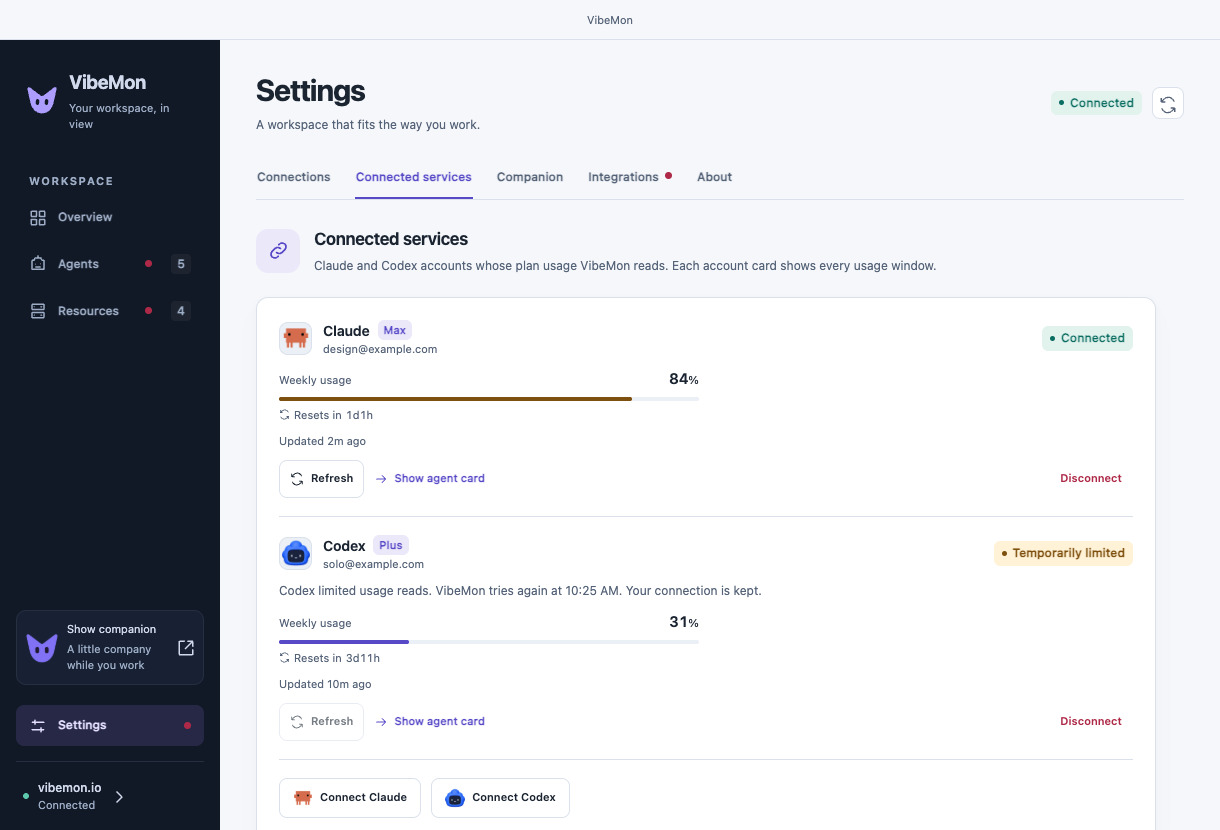
VibeMon’s server can read the plan usage of a Claude or Codex account without hooks or a collector. Open Settings → Connected services, or the Connected services section of Agents.
- Select Connect Claude or Connect Codex. The dialog explains what the service’s page shows and what VibeMon keeps. Select Connect Claude or Connect Codex in the dialog to start the sign-in.
- Claude: select Open Claude sign-in, select Authorize in the browser, copy the code that the page shows, paste it in Paste the code here, and select Connect. A rejected code keeps the sign-in so you can paste again; the fifth rejected code ends it.
- Codex: select Open the device page. The App copies the device code, opens OpenAI’s page, and waits for your approval while the dialog is open. If OpenAI refuses the code, turn on device code sign-in in your ChatGPT security settings.
- The dialog shows, for example, Claude is connected. and the weekly usage. Agent cards change at once.
The App opens only https://claude.ai (Claude) and https://auth.openai.com (Codex) pages that Web returned for the sign-in. Closing the dialog before the sign-in finishes cancels it on the server.
Each connection shows its service, plan, account label, state, the weekly usage gauge with its reset time, and when VibeMon last read it. The list reads Web again every 60 seconds while it is visible. Refresh asks for a new reading; it is available once a minute. Disconnect deletes the saved sign-in and the usage readings of that account on VibeMon; project activity from hooks is not affected. Sign in again appears when the service no longer accepts the saved sign-in. Show agent card opens the account’s details when the account is in your view.
| State | Meaning |
|---|---|
| Connected | The last reading succeeded. |
| Waiting | VibeMon has not read the account yet. |
| Not updated | The last reading is more than 30 minutes old. |
| Temporarily limited | The service limited reads; VibeMon tries again at the shown time and keeps the connection. |
| Not responding | The service did not answer; the account card keeps the earlier reading. |
| Sign in again | The service rejected the saved sign-in. Connect the account again. |
While no service is connected, Overview shows See your weekly allowance. No computer setup required. with Connect Claude and Connect Codex. A connection that is not Connected, or whose reading is old, appears at the top of Overview instead; select it to open Connected services. Opening Overview, Agents, or Connected services reads the connections again.
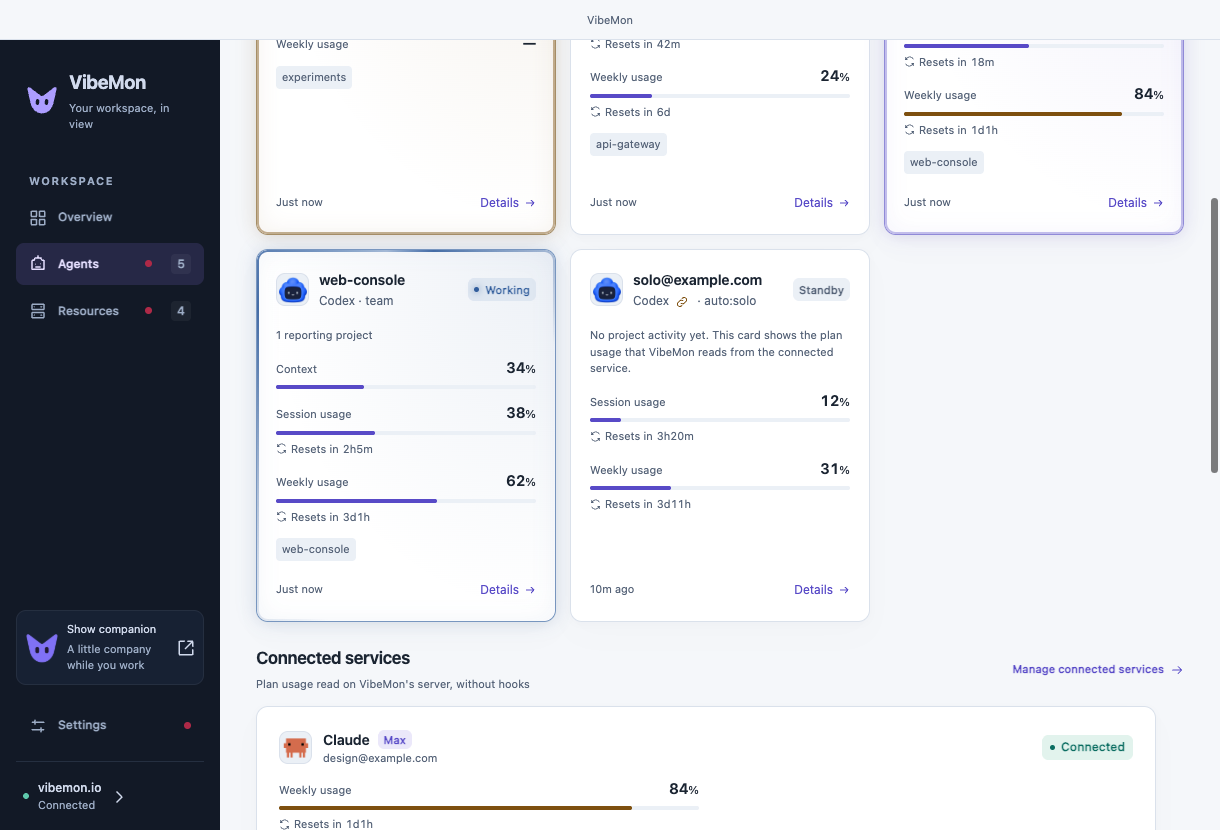
An agent account whose usage a service reads shows a link icon right after the provider name on its card, for example Claude Code 🔗 · studio. Point to the icon to see Usage from Claude Max, followed by Sign in again, Temporarily limited, or Not responding when the connection needs attention. The icon uses the accent color when the connection is ready, and the warning or danger color otherwise. Select it to open Connected services; it does not open the card details. A connected account without hook reports has its own card: it shows only session and weekly plan usage (never context), no projects, and no history. Its details have a Connected service section with Usage from Claude Max and Manage connected services.
A read token from an earlier Desktop version, or one pasted from Web Account, has no usage permission. Viewing connections still works. Connecting or disconnecting shows Sign in to VibeMon again on this desktop to connect services. Select Sign in to VibeMon again in the dialog or on the connection. The dashboard connection is not affected.
A Claude sign-in that another request is completing shows Checking… and asks again after the interval that VibeMon returns. A Codex sign-in stops waiting when it expires or when VibeMon rejects the read token. Closing the workspace window closes the connect dialog and cancels an unfinished sign-in. Minimizing the window or hiding the App (Cmd+H) keeps the sign-in, so you can approve it in the browser; it waits until it expires on VibeMon’s clock. A connection whose state this App version does not know is left out of the list, and an account link it cannot read is left off the card; the account card itself stays.
Settings
- Connections: VibeMon address, read token, connection recovery, and dashboard selection.
- Connected services: Claude and Codex accounts whose plan usage VibeMon reads, without hooks.
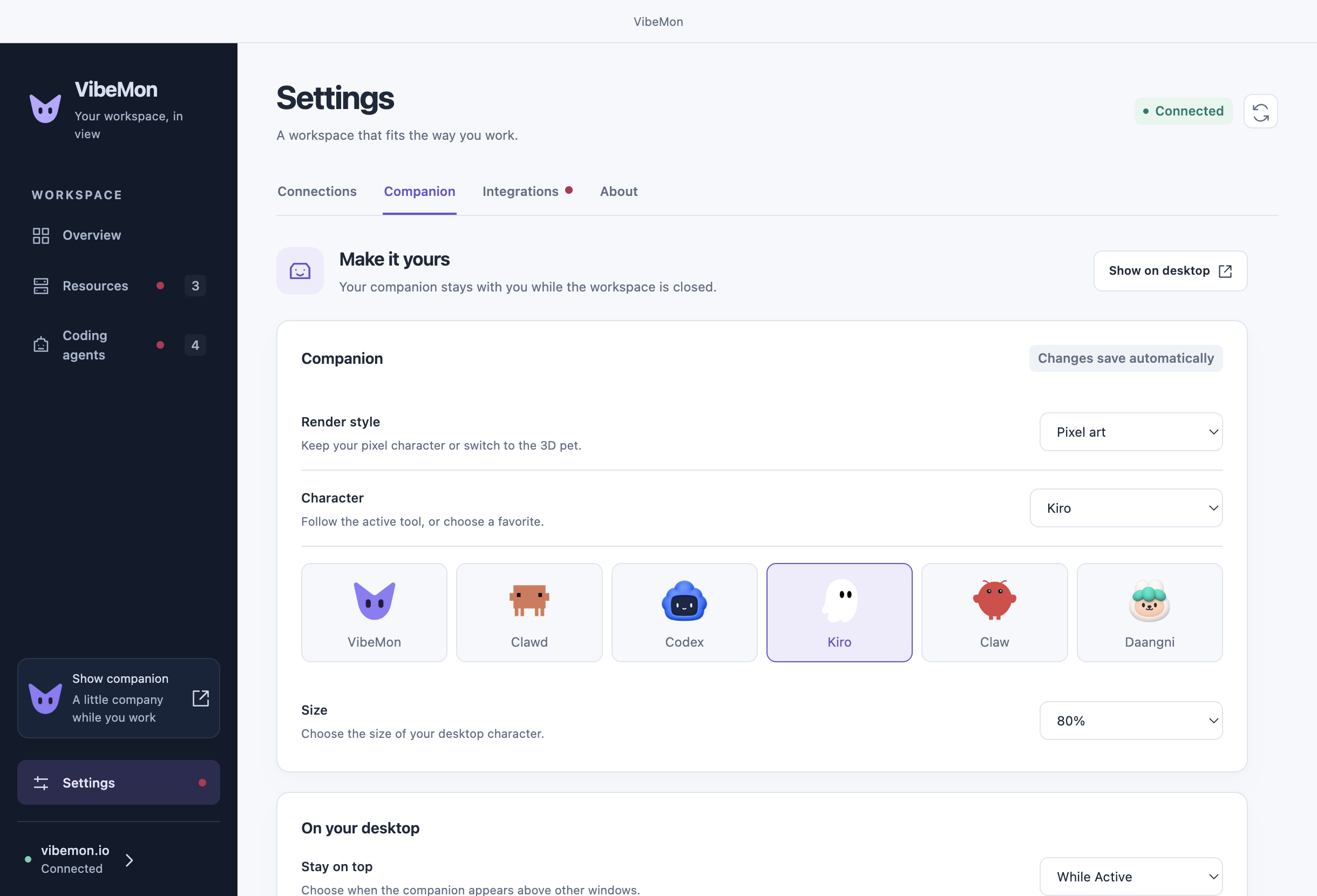
- Companion: 3D or pixel art, character, size, always-on-top behavior, edge distance, macOS Dock scaling, speech-bubble fields, workspace appearance, and login preference.
- Integrations: hook installation and repair, installation prompts, and advanced HTTP/serial delivery settings.
- About: App version, update actions, documentation, and release notes.
About → Download update downloads and verifies the package without closing the App. Select Restart and install when ready. Ordinary App exit does not install a pending update.
Preference changes save automatically. Connection and selection forms save only when submitted. Automatic polling keeps typed values and unsaved selections intact.
Recovery
| Display | Meaning and action |
|---|---|
— |
No supported measurement was reported. This is not zero. |
| Standby | The source is not connected or not active: a resource has no accepted receipt for 120 seconds, or a coding project’s last report has aged to sleep. Displayed values are the last known observation. No action is required; if you expect data, check the collector or hooks. |
| Token not accepted | Select Sign in with VibeMon again, or paste an active read token from Web Account. |
| Read access required | Replace the token with one that has read permission. |
| Replace saved token | The local credential cannot be decrypted. Enter it again from Web Account. |
| Sign in to VibeMon again on this desktop to connect services. | The read token has no usage permission. Select Sign in to VibeMon again in the Connected services dialog. |
| Connection interrupted | Check the VibeMon address and connectivity. Retained readings remain visible and go on Standby after 120 seconds. |
| No selected resources or accounts | Use Customize view, or start collection in the same VibeMon account. |
Verify changes
Run pnpm test:workspace for the isolated Electron UI test. It uses a loopback API, synthetic resources/accounts, and fake integration/credential ports. It does not access your provider credentials, keychain, login items, or hook configuration. Screenshots are written to out/workspace-tests/. For an interactive preview with sample connected services, run pnpm preview:workspace. pnpm screens:services captures the Connected services screens in light and dark; set VIBEMON_LOCALE=ko or ja for a translation.
pnpm exec jest tests/monitoring.test.js tests/workspace-window.test.js tests/workspace-settings.test.js --runInBand checks polling, selection, credential boundaries, trusted IPC, and settings operations. tests/usage-client.test.js and tests/services-store.test.js check the connected-service responses, failure codes, polling, and sign-in flows. pnpm test:overlays checks the existing 3D/2D character and speech-bubble behavior, including changes made from the new settings screen.
The optional tests/native/monitoring-smoke.cjs tests a separate Web fixture with real OS encryption. Set VIBEMON_TEST_FIXTURE to the private JSON emitted by Web’s scripts/local-monitoring-fixture.ts and VIBEMON_TEST_ORIGIN to its loopback URL. It can require OS keychain authorization. Keep its screenshots in out/monitoring-tests/; they can contain fixture account data and are not publication assets.